


|
Database Creation
|
|
Introduction
|
A database is primarily a group of computer files that
each has a name and a location. There are different ways to create a
database. To visually create a new database in Microsoft SQL Server
Management Studio, in the Object Explorer, you can right-click the Databases
node and click New Database... This would open the New Database dialog box.
 Practical
Learning: Introducing Databases Practical
Learning: Introducing Databases |
- Start the computer and log in
- Start Windows Explorer
- In the left frame, click the C: drive. If you already have a folder named Microsoft SQL Server Database Development, fine. If not, right-click a blank area in the right frame -> New -> Folder. Type Microsoft SQL Server Database Development as the name of the new folder
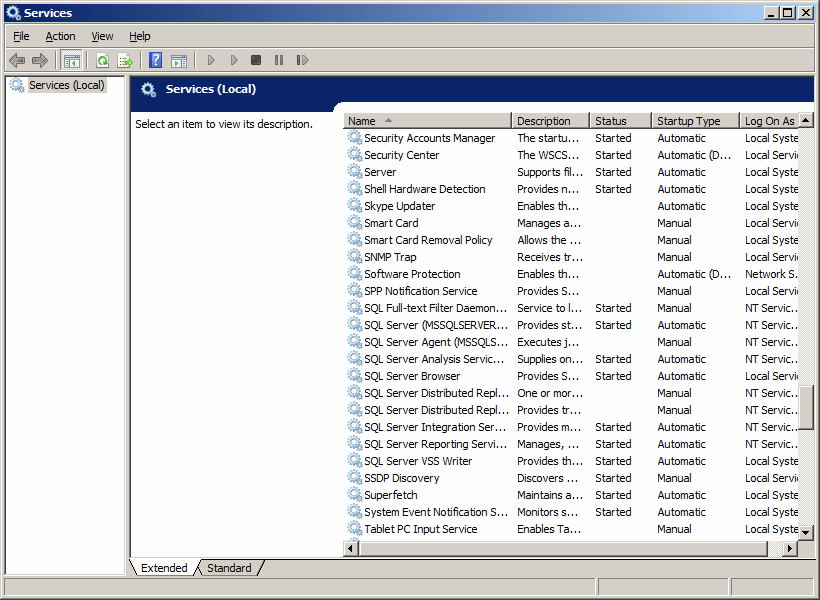
- Start Microsoft SQL Server. In the Server Name combo box, make sure
the name of the computer is selected. In the Authentication combo box,
make sure Windows Authentication is selected. Make sure the account you
are using is selected in the User Name combo box
- Click Connect
|
The Name of a Database
|
|
Probably the most important requirement of
creating a database is to give it a name. Transact-SQL is very
flexible when it comes to names. In fact, it is very less
restrictive than most other computer languages. Still, there are
rules you must follow when naming a database:
Because of the flexibility of Transact-SQL, it
can be difficult to maintain names in a database. Based on this,
there are conventions we will use for our objects. In fact, we will
adopt the rules used in C/C++, C#, Pascal, Java, and Visual Basic,
etc. In our databases:
|
 |
- Unless stated otherwise (we will mention the exceptions, for example with variables, tables, etc), a name will start with either a letter (a, b, c, d, e, f, g, h, i, j, k, l, m, n, o, p, q, r, s, t, u, v, w, x, y, z, A, B, C, D, E, F, G, H, I, J, K, L, M, N, O, P, Q, R, S, T, U, V, W, X, Y, or Z) or an underscore
- After the first character, we will use any combination of letters, digits, or underscores
- A name will not start with two underscores
- If the name is a combination of words, at least the second word will start in uppercase. Examples are Countries Statistics, Global Survey, _RealSport, FullName, or DriversLicenseNumber
After creating an object whose name includes space,
whenever you use that object, include its name between [ and ]. Examples are
[Countries Statistics], [Global Survey], or [Date of Birth].
Even if you had created an object with a name that doesn't include space,
when using that name, you can still include it in square brackets. Examples
are [UnitedStations], [FullName], [DriversLicenseNumber],
and [Country].
- In the Object Explorer, right-click Databases and click New
Database...
- In the Name text box, type MotorVehicleAdministration


|
The Primary Size of a Database
|
When originally creating a database, you may or may not
know how many lists, files, or objects the project would have. Still, as a
user of computer memory, the database must use a certain portion, at least
in the beginning. The amount of space that a database is using is referred
to as its size. If you use the New Database dialog box, after specifying the
name of the database and clicking OK, the interpreter automatically
specifies that the database would primarily use 2MB. This is enough for a
starting database. Of course, you can either change this default later on or
you can increase it when necessary.
If you want to specify a size different from the
default, if you are using the New Database to create your database, in the
Database Files section and under the Initial Size column, change the size as
you wish.
|
Practical
Learning: Setting the Database File Size |
- In the Database Files section, click the box under the Initial Size column header, click the up arrow of the spin button and increase its value to 5
|
The Location of a Database
|
As you should be aware of already from your experience
on using computers, every computer file must have a path. The path is where
the file is located in one of the drives of the computer. This allows the
operating system to know where the file is, so that when you or another
application calls it, the operating system would not be confused.
By default, when you create a new database, Microsoft
SQL Server assumes that it would be located at Drive:\Program
Files\Microsoft SQL Server\MSSQL10.MSSQLSERVER\MSSQL\DATA folder. If you use
the New Database dialog box of the SQL Server Management Studio, if you
specify the name of the database and click OK, the interpreter automatically
creates a new file, and appends the .MDF extension to the file: this is the
(main) primary data file of your database.
If you do not want to use the default path, you can
change it. If you are using the New Database dialog box, to change the path,
under the Path header, select the current string:

Replace it with an appropriate path of your choice.

|
Practical
Learning: Checking the Location of the Data File |
- Scroll to the right side and, under the Path header, notice the location of the file
- Under Path, click the browse button
- Locate the Microsoft SQL Server Database Development folder and select it
- Do the same for the other path
- Click OK


|
Practical
Learning: Checking the Location of the Data File |
- Scroll to the right side and, under the Path header, notice the location of the file
- Under Path, click the browse button
- Locate the Microsoft SQL Server Database Development folder and select it
- Do the same for the other path
- Click OK
|
Default Databases
|
|
Introduction
|
When you install Microsoft SQL Server, it also installs
4 databases named master, model, msdb, and tempdb.
These databases will be for internal use. This means that you should avoid
directly using them, unless you know exactly what you are doing.
One of the databases installed with Microsoft SQL Server
is named master. This database holds all the information about the
server on which your Microsoft SQL Server is installed. For example, you
know that, to perform any operation on the server, you must login. The
master database identifies any user who accesses the database, when, and
how.
Besides identifying who accesses the system, the
master database also keeps track of everything you do on the server,
including creating and managing databases.
You should not play with the master database at the risk
of corrupting the system. For example, if the master database is not
functioning right, the system would not work.
|
Database Creation With Code
|
|
To assist you with creating and managing
databases, including their objects, you use a set of language tools
referred to as the Data Definition Language (DDL). This language is
mostly made of commands. For example, the primary command to create
a database uses the following formula:
CREATE DATABASE DatabaseName
To assist you with writing code, in the previous
lessons, we saw that you could use the Query Editor and/or the
Template Explorer.
The CREATE DATABASE (remember that SQL is
not case-sensitive) expression is required. The DatabaseName
factor is the name that the new database will have. Although SQL is
not case-sensitive, you should make it a habit to be aware of the
cases you use to name your objects.
|
 |
Every statement in SQL can be terminated with a
semi-colon. Although this is a requirement in some implementations of SQL,
in Transact-SQL, you can omit the semi-colon. Otherwise, the above formula
would be
CREATE DATABASE DatabaseName;
Here is an example:
CREATE DATABASE NationalCensus;
This formula is used if you don't want to provide any
option. We saw previously that a database has one or more files and we saw
where they are located by defauft. We also saw that you could specify the
location of files if you want. To specify where the primary file of the
database will be located, use the following formula:
CREATE DATABASE DatabaseName
ON PRIMARY
( NAME = LogicalName, FILENAME = Path )
The only three factors whose values need to be changed
from this formula are the database name that we saw already, the logical
name, and the path name. The logical name can be any one-word name but
should be different from the database name. The path is the directory
location of the file. This path ends with a name for the file with the
extension .mdf. The path should be complete and included in single-quotes.
Here is an example:
CREATE DATABASE NationalCensus
ON PRIMARY
( NAME = DataRepository, FILENAME = 'C:\Exercises\NationalCensus.mdf')
GO
Besides the primary file, you may want to create and
store a log file. To specify where the log file of the database would be
located, you can use the following formula:
CREATE DATABASE DatabaseName
ON PRIMARY
( NAME = LogicalName, FILENAME = Path.mdf )
LOG ON
( NAME = LogicalName, FILENAME = Path.ldf )
Like the primary file, the log file must be named (with
a logical name). The path ends with a file name whose extension is
.ldf. Here is an example:
CREATE DATABASE NationalCensus
ON PRIMARY
( NAME = DataRepository, FILENAME = 'C:\Exercises\NationalCensus.mdf')
LOG ON
( NAME = DataLog, FILENAME = 'C:\Exercises\NationalCensus.ldf')
GO
- To open the code editor, in the Object Explorer, right-click the
name of the server and click New Query
- In the empty window, type:
CREATE DATABASE RealEstate1
ON PRIMARY
( NAME = DataRepository, FILENAME = 'C:\Microsoft SQL Server Database Development\RealEstate1.mdf')
LOG ON
( NAME = DataLog, FILENAME = 'C:\Microsoft SQL Server Database Development\RealEstate1.ldf')
GO
- To execute the statement, press F5


|
Using Code Template
|
To specify more options with code, Microsoft SQL Server
ships with various sample codes you can use for different assignments. For
example, you can use sample code to create a database.
The sample codes that Microsoft SQL Server are
accessible from the Template Explorer. To access the Template Explorer, on
the main menu, you can click View -> Template Explorer.
Before creating a database, open a new Query Editor.
Then:
|
 |
After any of these actions, Microsoft SQL Server would
generate sample code for you. You would then edit the code and execute it to
create the database. From the previous lessons and sections, we have
reviewed some characters such as the comments -- and some words or
expressions such as GO, CREATE DATABASE, and SELECT. We
will study the other words or expressions in future lessons and sections.
|
Database Routines
|
While writing code in a Query Editor, you should always
know what database you are working on, otherwise you may add code to the
wrong database.
Before visually making a database the current, a Query
Editor must be opened. To visually select a database and make it the
current, in the SQL Designer toolbar, click the arrow of the Available
Databases combo box and select the desired database:

To programmatically specify the current database, in a
Query Editor or using the SQLCMD utility (including
PowerShell) at the Command Prompt, type the USE keyword followed by
the name of the database. The formula to use is:
USE DatabaseName;
Here is an example:
USE Exercise;

|
Refreshing the List of Databases
|
Some of the windows that display databases, like the SQL
Server Management Studio, don't update their list immediately if an
operation occurred outside their confinement. For example, if you create a
database in a Query Editor, its name would not be updated in the Object
Explorer. To view such external changes, you can refresh the window that
holds the list.
In SQL Server Management Studio, to update a list, you
can right-click its category in the Object Explorer and click Refresh. For
example, to refresh the list of databases, in the Object Explorer, you can
right-click the Databases node and click Refresh.
|
Database Maintenance
|
|
Introduction
|
If you have created a database but don't need it
anymore, you can delete it. It is important to know, regardless of how you
create a database, whether using SQL Server Management Studio, code in the
Query Editor, or the Command Prompt, every database can be accessed by any
of these tools and you can delete any of the databases using any of these
tools.
As done with creating a database, every tool provides
its own means.
|
SQL Server Management Studio
|
To delete a database in SQL Server Management Studio, in
the Object Explorer, expand the Databases node, right-click the undesired
database, and click Delete. A dialog box would prompt you to confirm your
intention. If you still want to delete the database, you can click OK. If
you change your mind, you can click Cancel.
|
Deleting a Database Using SQL
|
To delete a database in a Query Editor, use the DROP
DATABASE expression followed by the name of the database. The formula
used is:
DROP DATABASE DatabaseName;
Before deleting a database in SQL, you must make sure
the database is not being used or accessed by someone else or by another
object.
|
Schemas
|
|
Introduction to Namespaces
|
A namespace is a group of "things" where each thing has
a unique name. This can be illustrated as follows:

Notice that there are various types of objects within a
namespace. For example, inside a company, each department has a unique name.
Because two companies are independent, they can have departments that have
the same name inside each company.
To organize its own items, a namespace can have other
namespaces inside. That is, a namespace can have its own sub-namespaces,
just like a company can have divisions.
|
Introduction to Schemas
|
As mentioned already, a namespace can have objects
inside. To further control and manage the objects inside of a namespace, you
can put them in sub-groups called schemas. Therefore, a schema (pronounced
skima) is a group of objects within a namespace. This also means
that, within a namespace, you can have as many schemas as you want. This can
be illustrated as follows:

Notice that, just like a namespace can contain objects
(schemas), a schema can contain objects also (the objects we will create
throughout our lessons).
To manage the schemas in a namespace, you need a way to
identify each schema. Based on this, each schema must have a name. In our
illustration, one schema is named Schema1. Another schema is named Schema2.
Yet another schema is named Schema_n.
A schema is an object that contains other objects.
Before using it, you must create it or you can use an existing schema. There
are two types of schemas you can use, those built-in and those you create.
When Microsoft SQL Server is installed, it also creates a few schemas. One
of the schemas is named sys. Another is called dbo.
The sys schema contains a
list of some of the objects that exist in your database system. One of these
objects is called databases (actually, it's a view). When you create
a database, its name is entered in the databases list using the same
name you gave it.
To access the schemas of a database, in the Object
Explorer, expand the Databases node, expand the database that will hold or
own the schema, and expand the Security node.
To visually create a schema, in the Object Explorer,
expand the database:
- Right-click its Security node, position the mouse on New and click Schema...

- Expand the Security node of the database. Right-click Schemas and click New Schema...

This would open the Schema - New dialog box. In the
Schema Name text box, enter a one-word name. Here is an example:

After providing a name, you can click OK.
The basic formula to create a schema is:
CREATE SCHEMA schema_name_clause [ <schema_element> [ ...n ] ]
Here is an example:
1> CREATE SCHEMA PrivateListing;
2> GO
1>
|
Accessing an Object From a Schema
|
Inside of a schema, two objects cannot have the same
name, but an object in one schema can have the same name as an object in
another schema. Based on this, if you are accessing an object within its
schema, you can simply use its name, since that name would be unique. On the
other hand, because of the implied possibility of dealing with objects with
similar names in your server, when accessing an object outside of its
schema, you must qualify it. To do this, you would type the name of the
schema that contains the object you want to use, followed by the period
operator, followed by the name of the object you want to use. From our
illustration, to access the Something1 object that belongs to Schema1, you
would type:
Schema1.Something1
When Microsoft SQL Server is installed, it creates a
schema named dbo. This is probably the most common schema
you will use. In fact, if you don't create a schema in a database, the
dbo schema is the default and you can apply it to any
object in your database.
|
Practical
Learning: Ending the Lesson |
- In the Object Explorer, right-click MotorVehicleAdministration
and click Delete
- In the Delete Object dialog box, click OK
- In the Object Explorer, right-click the name of computer and click Start PowerShell
- Type sqlcmd and press Enter
- Type USE Master; and press Enter
- Type GO and press Enter
- To delete a database, type the following code and press Enter after
each line:
DROP DATABASE RealEstate1;
GO


No comments:
Post a Comment